
If you need bulk storage, start with one of the three desktop external drives here; if you are filling a bay inside a desktop PC, choose the internal WD Blue or the Samsung NVMe stick for outright speed. All five are genuine storage drives, so the decision is capacity, connection and form factor. The Seagate states the largest capacity at 24TB, the WD Elements follows at 20TB, and the Samsung trades down to 4TB for PCIe 4.0 speeds.
Three listings carry details that rest on the product name or conflict between name and facts. The G-DRIVE unit’s 12TB (product name) capacity appears only in its name, and its speed figures disagree: the name states up to 250 MB/s read (product name), while its facts give up to 260 MB/s only for the 18TB to 26TB capacities. The Seagate’s facts state USB 3.3 while its name states USB 3.0 (product name), and several WD Blue details are name-only, each flagged below.
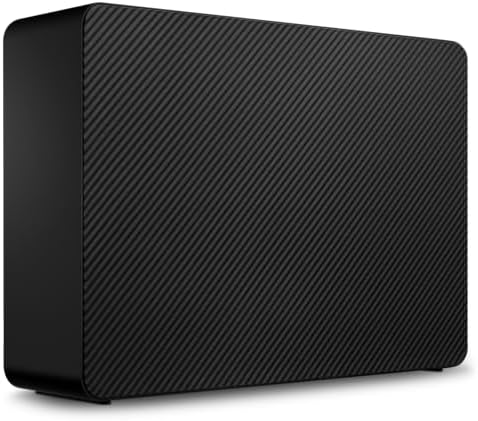
As an Amazon Associate, we earn from qualifying purchases.



Pick by Your Need
- Best overall: Seagate Expansion 24TB. It states the largest capacity here at 24TB, with automatic recognition of Windows and Mac computers.
- Best for plug-and-play bulk storage: WD Elements 20TB. Ready for Windows PCs out of the box, stating 20TB in a 1.98-pound enclosure.
- Best for speed: Samsung 990 PRO 4TB. Its facts state read speeds up to 7,450 MB/s and write speeds up to 6,900 MB/s over PCIe 4.0.
- Best for project workstations: G-DRIVE Project. A 7200RPM Ultrastar drive stated in its facts, with Thunderbolt 3 and USB (10Gbps), at a 12TB (product name) capacity.
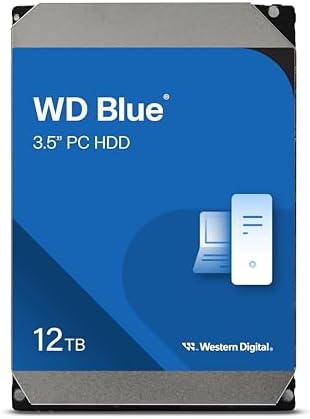
- Best internal desktop drive: WD Blue 12TB. States 12TB for a 3.5-inch (product name) bay, with cloning software in its facts.
Quick Answer
Choose the Seagate Expansion 24TB for the most stated storage, the WD Elements 20TB for simple Windows plug-and-play backup, or the G-DRIVE Project when your workstation has Thunderbolt 3. For a drive that mounts inside a PC, the WD Blue states 12TB, while the Samsung 990 PRO states 4TB with the fastest speeds in this set.
Comparison Table
| Product | Capacity | Form | Connection | Weight | Buy |
|---|---|---|---|---|---|
| WD Elements 20TB | 20TB | External desktop HDD | USB 3.0 (product name) | 1.98 pounds | View on Amazon |
| Seagate Expansion 24TB | 24TB | External desktop HDD | USB 3.3 in facts; USB 3.0 (product name) | 2.95 pounds | View on Amazon |
| Samsung 990 PRO 4TB | 4TB | Internal NVMe SSD | PCIe 4.0 | 0.02 pounds | View on Amazon |
| G-DRIVE Project | 12TB (product name) | External desktop HDD | Thunderbolt 3, USB (10Gbps) | not stated | View on Amazon |
| WD Blue 12TB | 12TB | Internal HDD | SATA 6 Gb/s (product name) | 1.65 pounds | View on Amazon |
Decision Guide
If capacity per drive is the priority, start with the Seagate Expansion: its spec table states 24TB, 4TB beyond the WD Elements at 20TB. The WD Elements answers with a smaller footprint, 5.31 by 1.89 by 6.53 inches against 7.04 by 1.65 by 4.92 inches, and 1.98 pounds against 2.95 pounds.
If your workstation has a Thunderbolt 3 port, the G-DRIVE Project is the only external pick that uses it; its facts state a 7200RPM Ultrastar enterprise-class drive inside, with USB (10Gbps) as the fallback. Treat its claims with care: the 12TB (product name) figure appears only in its name, its facts state up to 260 MB/s only for the 18TB to 26TB capacities, and its name states up to 250 MB/s read (product name), so confirm both on the product page.
If the drive goes inside a desktop, the choice is mechanical versus solid state. The WD Blue states 12TB in its spec table, three times the Samsung’s 4TB. The Samsung 990 PRO gives up that capacity for stated read speeds up to 7,450 MB/s and write speeds up to 6,900 MB/s, figures no mechanical drive here states. Choose by role: the WD Blue for archive volume, the Samsung for daily loading speed.
1. WD Elements 20TB Desktop Drive — Best for plug-and-play bulk storage
The WD Elements is the straightforward backup drive here: its facts state high-capacity add-on storage, fast data transfers and plug-and-play readiness for Windows PCs, with reformatting required for use with MacOS. Its spec table states 20TB and a weight of 1.98 pounds. The trade-off: its USB 3.0 (product name) interface rests on the name alone, and its facts give no transfer speed figure.
| Spec | From the listing |
|---|---|
| Capacity | 20TB |
| Interface | USB 3.0 (product name) |
| Dimensions | 5.31 x 1.89 x 6.53 inches |
| Weight | 1.98 pounds |
| Transfer speed | The listing does not state it |
2. Seagate Expansion 24TB Desktop Drive — Best overall capacity
The Seagate Expansion states the largest capacity here, 24TB in its spec table, and its facts describe drag-and-drop saving once you plug in the power adapter and USB cable. Its facts also state automatic recognition of Windows and Mac computers, with reformatting required for Time Machine. One conflict: its facts state fast file transfers with USB 3.3, while its product name states USB 3.0 (product name), so re-check the interface version on the product page.
| Spec | From the listing |
|---|---|
| Capacity | 24TB |
| Interface | USB 3.3 stated in facts; USB 3.0 (product name) |
| Data recovery | Rescue Data Recovery Services (product name) |
| Dimensions | 7.04 x 1.65 x 4.92 inches |
| Weight | 2.95 pounds |
3. Samsung 990 PRO 4TB NVMe SSD — Best for speed
The Samsung 990 PRO is the only solid-state pick here and the only internal stick, in an M.2 2280 (product name) form that weighs 0.02 pounds. Its facts state read speeds up to 7,450 MB/s and write speeds up to 6,900 MB/s over PCIe 4.0, with capacities in its line running from 1TB to 4TB. The trade-off is capacity per drive: 4TB is one sixth of the Seagate’s stated 24TB, so this pick suits an active system drive, not a media archive.
| Spec | From the listing |
|---|---|
| Capacity | 4TB |
| Interface | PCIe 4.0 |
| Read speed | Up to 7,450 MB/s |
| Write speed | Up to 6,900 MB/s |
| Form factor | M.2 2280 (product name) |
4. G-DRIVE Project Desktop Drive — Best for project workstations
The G-DRIVE Project is the workstation-oriented external drive here: its facts state a 7200RPM Ultrastar enterprise-class hard drive inside, a Thunderbolt 3 (40Gbps) interface and USB (10Gbps) compatibility. Two claims need care: its 12TB (product name) capacity appears only in its name, and its speed figures conflict, with facts stating up to 260 MB/s for the 18TB to 26TB capacities while its name states up to 250 MB/s read (product name). Its listing gives no dimensions or weight.
| Spec | From the listing |
|---|---|
| Capacity | 12TB (product name) |
| Drive speed | 7200 RPM |
| Interface | Thunderbolt 3 (40Gbps), USB (10Gbps) |
| Transfer speed | 260 MB/s for 18TB to 26TB capacities (facts); 250 MB/s read (product name) |
| Dimensions | The listing does not state it |
| Weight | The listing does not state it |
5. WD Blue 12TB Internal Drive — Best internal desktop drive
The WD Blue is the internal mechanical drive in this set, built for a 3.5-inch (product name) bay inside a desktop, and its spec table states 12TB and a weight of 1.65 pounds. Its facts lead with reliable everyday computing and include free Acronis True Image WD Edition cloning software. The trade-off is documentation: its 7200 RPM (product name) rotational speed, SATA 6 Gb/s (product name) interface and 512 MB (product name) cache all rest on the product name alone.
| Spec | From the listing |
|---|---|
| Capacity | 12TB |
| Rotational speed | 7200 RPM (product name) |
| Interface | SATA 6 Gb/s (product name) |
| Dimensions | 5.9 x 4.2 x 1.0 inches |
| Weight | 1.65 pounds |
Shopping Checklist
- Decide internal versus external first: two picks mount inside a desktop, three sit on the desk.
- Compare stated capacities: 24TB, 20TB, 12TB and 4TB are stated figures, while the G-DRIVE’s 12TB (product name) rests on its name.
- Match the connection to your computer: Thunderbolt 3, USB or a SATA bay, and note the Seagate’s interface conflict before ordering.
- Check stated dimensions against your desk space or drive bay; the G-DRIVE listing gives no dimensions or weight.
- Re-check name-only figures on the product page before ordering, including the WD Blue’s rotational speed and cache (product name).
- Check the return window on the product page, especially where a listing’s figures conflict.
FAQ
Should I choose an internal or an external hard drive?
Choose an external drive for backup storage that plugs into the USB or Thunderbolt port you already have, and an internal drive if your desktop has a free bay or slot. Here the external drives state the largest capacities, 24TB and 20TB, while the internal Samsung states the fastest speeds.
What if a drive’s capacity or speed rests only on its product name?
Treat that figure as unconfirmed and re-check it on the product page before buying. Here the G-DRIVE’s 12TB (product name) capacity appears only in its name, and its facts scope the 260 MB/s figure to larger capacities, while the WD Blue’s rotational speed, interface and cache (product name) are likewise name-only details.
How much capacity do I actually need?
Start from the size of your current library and how fast it grows, then leave headroom rather than filling a drive to the edge. A 4TB drive suits a system and active projects, while 20TB and 24TB desktop drives suit long-term archives of photos, video and backups.
Final Verdict
For most buyers the Seagate Expansion 24TB is the simplest recommendation: it states the most capacity, works with Windows and Mac computers, and asks only that you confirm its interface version. The WD Elements 20TB is the lighter, smaller alternative for Windows plug-and-play backup, and the G-DRIVE Project suits Thunderbolt 3 workstations once you verify its capacity (product name) and conflicting speeds. Inside a desktop, the WD Blue states 12TB for bulk storage while the Samsung 990 PRO states 4TB with far faster transfers.
Prime covers fast, free delivery on eligible items. See whether a Prime free trial is available for your account.
Check Prime on Amazon →Product and ASIN Reference
| Product | ASIN | Buy |
|---|---|---|
| WD Elements 20TB | B09VCXWPQG | View on Amazon |
| Seagate Expansion 24TB | B0DVM1Z46T | View on Amazon |
| Samsung 990 PRO 4TB | B0CHGT1KFJ | View on Amazon |
| G-DRIVE Project | B0GNCL5YMZ | View on Amazon |
| WD Blue 12TB | B0F7MJV2X8 | View on Amazon |
Types of Hard Drives
Hard drives (HDDs) are grouped mainly by physical size and by what workload they're built for.
3.5-inch (desktop) drives spin faster and hold more capacity per drive, needing power beyond USB alone. 2.5-inch (portable) drives are smaller and often run entirely on USB power. NAS-rated drives are built for 24/7 operation and multi-drive arrays, typically with a longer warranty and more vibration tolerance than a standard desktop drive. Higher-RPM drives (7200 vs 5400) trade some noise and heat for faster read/write speeds.
A hard drive is still meaningfully cheaper per terabyte than an SSD at high capacities, which is why it remains common for bulk or archival storage even though SSDs are faster for an OS or actively-used files.
Frequently Asked Questions
Why would someone still buy a hard drive instead of an SSD?
A hard drive is still meaningfully cheaper per terabyte at high capacities, which is why it remains common for bulk or archival storage even though SSDs are faster for an OS or actively-used files.
What's the difference between a 3.5-inch and a 2.5-inch hard drive?
3.5-inch (desktop) drives spin faster and hold more capacity but need power beyond USB alone, while 2.5-inch (portable) drives are smaller and often run entirely on USB power.
What makes a NAS-rated drive different from a standard desktop drive?
NAS-rated drives are built for 24/7 operation and multi-drive arrays, typically with a longer warranty and more vibration tolerance than a standard desktop drive.









Write Your Review
No reviews yet. Be the first to share your experience!